top of page


How to measure with "MagicPlan"

For Android

For iPhone/iPad
1. Create your account

Tap on "Let's go"
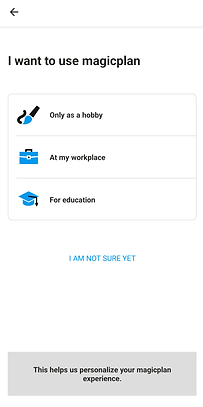
Tap on "I am not sure yet" in blue
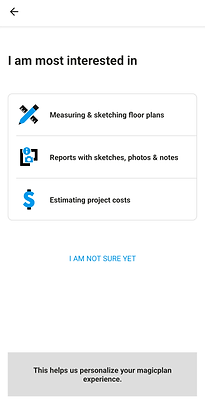
Tap again on "I am not sure yet" in blue
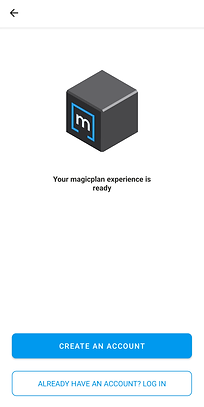
Tap on "Create an account"
2. Create your Project
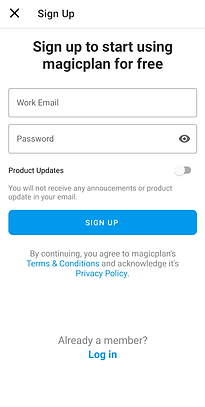
Write your Email and Password then tap on "Sign up"
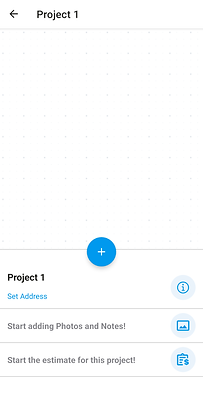
Tap on the blue "+" sign in the middle
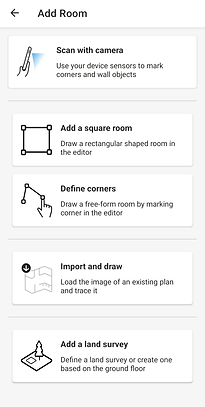
Tap on "Scan with camera"
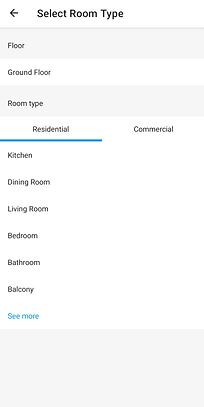
Select the type of room you are scanning
3. Follow the instructions displayed on your screen

The steps are:
-
Add the corners of your space.
-
Tap Done.
-
Set the Height of your walls.

Tap the "camera icon" on the bottom right corner to take pictures
-
Stand in corners and shot wide shots.
-
Walk around and show us what matters to you in your space.
-
Shoot close ups of details that we should know about.
3. Follow the instructions displayed on your screen
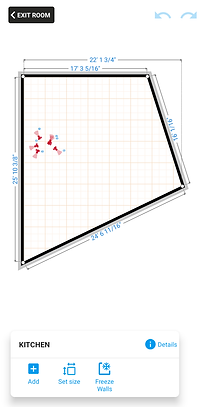
Tap on Exit Room

Tap on the PDF Report on the bottom left
Tap on the PDF Report on the bottom left

Tap on the red PDF Report icon
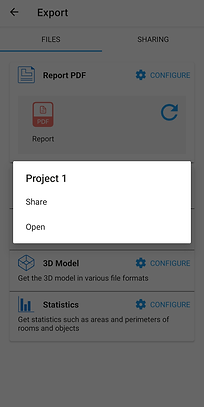
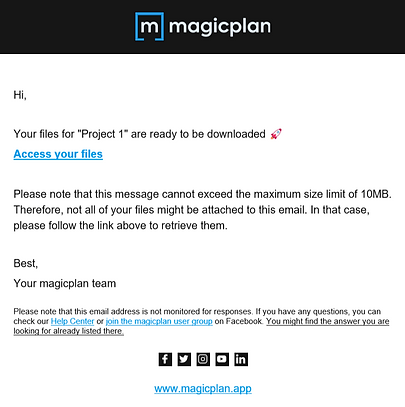
You can tap share to save it or open to view your project
bottom of page